How to Use the Manual – Troubleshooting
Introduction
The following information describes how this manual is organized and how to use it. This section will cover how to use the manual for troubleshooting. For information on how to use the manual to remove, install and test components, refer to How to Use the Manual – Removal, Installation, and Test.
Overview
The troubleshooting procedure consists of two parts:
|
DTC/Symptom Information Section: Information such as an overview, affected circuits/components, what to inspect, etc. are listed and are separated by categories.
|
|
Inspection/Test Section: After choosing an inspection/test referred to as Work Items, supplemental information on how to perform a test/inspection is provided.
|
The style of troubleshooting procedure in the manual allows the technician to be able to choose the inspection item in any order rather than following a conventional flow chart.
Below are examples in how to select an appropriate test or inspection to start first.
|
-
|
Ease in accessibility to a part/component or test area.
|
|
-
|
The most probable cause (component, circuit, etc.) based on the customer’s contention or vehicle condition.
|
|
-
|
Start with fuses, relays, wire harnesses, sensors, actuators before a control unit.
|
DTC/Symptom Information Types
|
|
DTC / Symptom
|
Describes the DTC or symptom title, and provides any general notes and advices for troubleshooting.
|
Overview (for DTC troubleshooting only)
|
Describes the reason why the DTC was set.
|
Inspection Outline
|
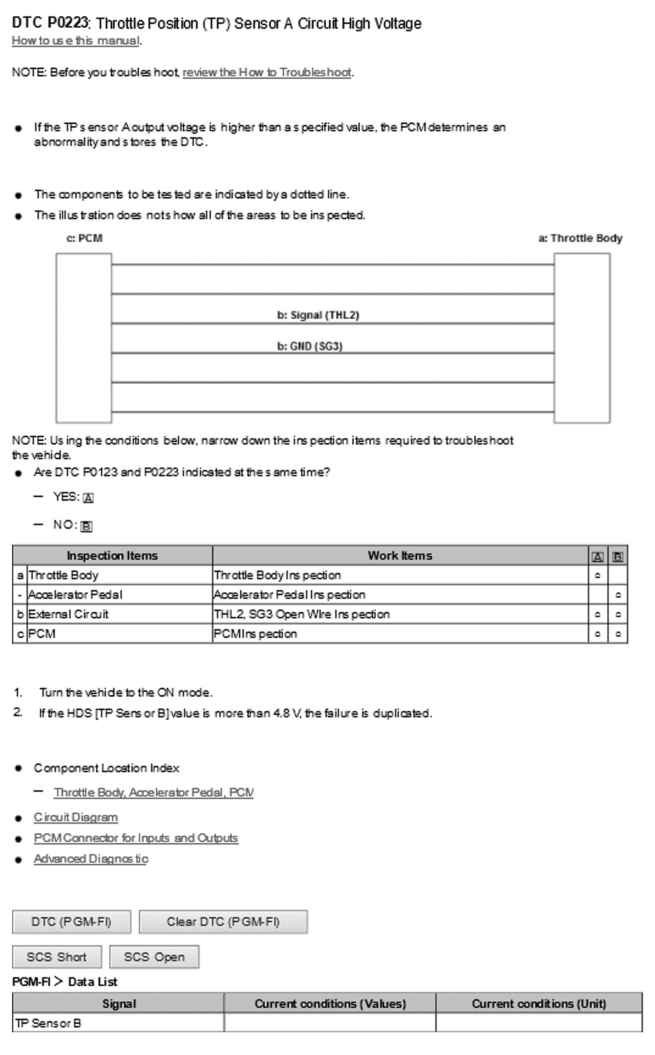
A visual diagram that shows the system or circuit of the affected area. Component(s) or wire(s) that may have caused the DTC are indicated by a red, dotted-line.
NOTE: If all of the component(s) or wire(s) in the system or circuit are the possible cause, the red, dotted-line will surround the entire system or circuit
|
|
Test or inspection procedures referred to as Work Items are listed in a table.
|
|
A letter (a/b/c) in the left end of the table relates to the inspection item of the visual diagram.
NOTE: “-” represents inspection items are not described in the visual diagram.
|
|
Pick and choose the work item based on your preference and vehicle condition in any order. However, if you are unsure which work item to start with in any troubleshooting, start from the top and work your way down until you find the fault. In addition, if there are any efficient ways to do any particular work item or if an order should be followed, tips and advice will be shown.
|
|
If multiple work items are shown for one component, it is necessary to perform all of the listed inspections items.
|
|
Some inspection items may indicate to replace a component only. This should only be followed after clearing and confirming the DTC reappears.
|
|
Some inspection items may have different tests or inspection procedures depending on the vehicle condition. In these cases, a note is provided in the Inspection Outline on how to determine which Inspection Items are applicable.
|
|
1.
|
First, review the conditions listed.
|
|
2.
|
Second, determine the actual condition of the vehicle you are working on and check its corresponding letter reference .
|
|
3.
|
Third, determine which inspection items are required according to the chosen letter reference.
|
|
Confirmation Procedure (for DTC troubleshooting only)
| Describes the steps to reproduce the DTC. These steps should be used to confirm that a correct repair was made or reproducing an intermittent failure. |
|
|
NOTE:
Not all DTC troubleshooting will have a confirmation procedure.
|
|
If a confirmation procedure is not listed, check the advanced diagnostic information for additional information (powertrain related DTC’s only).
|
|
Related Information
|
|
Lists additional resources related to the system you are troubleshooting. These include circuit diagrams, the connector for inputs and outputs reference sheets, and advanced diagnostic sheets (powertain related DTC’s only).
|
HDS Function
|
When troubleshooting is launched with the i-HDS connected to the vehicle, certain HDS functions can be directly accessed. Depending on the troubleshooting they may include the following:
|
|
Accessing and clearing the DTC (For the system you are troubleshooting only)
|
|
Shorting or opening the SCS
|
|
On-board snap-shots
|
|
Data list or specific parameters
|
|
Function tests
|
|
|
Using the Test/Inspection (Work Items) Information
|
|
Work Items
|
Describes the work item that was chosen from the inspection outline.
|
Notes/Advice
|
Any general notes and advice related to the test procedure are shown.
|
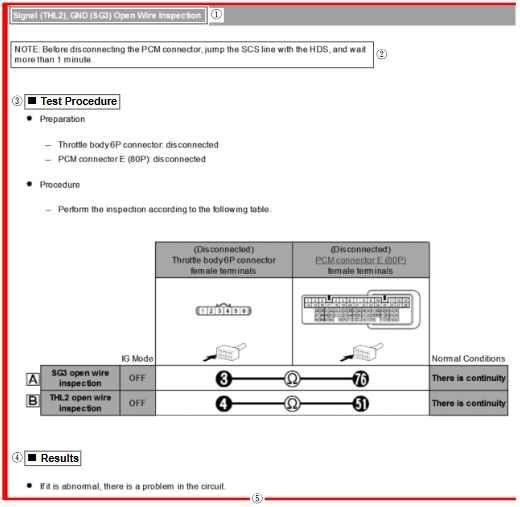
Test Procedure
|
Describes the preconditions of the vehicle that have to be met, the type of test, criteria, and how to perform the test or inspection.
|
|
For circuit inspections, a table is provided to show what and how to test the circuit. Refer to the Terminal Inspection Table for details.
|
Results
|
Describes the problem based on the test result. If no abnormality is found, perform another work item from the inspection outline.
|
Red Frame
|
A red frame surrounds the work item you chose from the inspection outline.
NOTE: It is important not to go beyond the red frame as the information applies to other work items.
|
|
Terminal Inspection Table (Circuit Inspections Only)
|
|
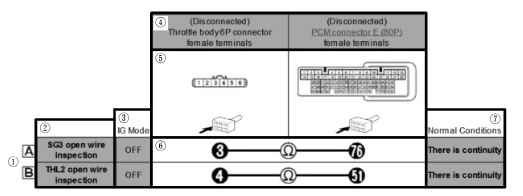
Condition Reference
|
As explained under the Inspection Outline description, some troubleshooting will require different test or inspection procedures based on the vehicle condition. Test only the items that are required for that condition. For example, if you determined that you need to do items listed under column “A” of the table under inspection outline, do only the circuit inspection listed under “A” of the Terminal Inspection Table.
NOTE: If no letter reference is listed, then you must do all of the listed circuit inspections.
|
Circuit Description
|
Description of the circuit being tested.
|
IG Mode
|
Lists the ignition status the vehicle should be in during a particular test. Some may include an * which alerts you of any notes that needs to reviewed (at the bottom of the table).
|
Connector Information
|
Details of the connector being tested, its tested condition, whether to test from the male or female side are shown.
|
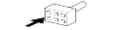
Terminal Locations
|
Shows an image of the connector being tested, it’s terminal location and how it should be viewed, whether it is male or female.
|
Test Measurements
|
Shows what test to perform using symbols. Refer to the List of Symbols for a description of the symbols used.
|
Normal Conditions
|
Lists what the result should be if there are no problems.
|
|
The circuit type of the power supply may be shown.
|
|
List of Symbols
|
Symbols
|
What to Do
|
Inspection Types
|
|
|
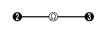
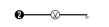
Check for continuity between the two terminals.
|
|
|
- Line-to-line short circuit inspection
|
|
|
|
Check for continuity between the terminal and ground.
|
|
|
- Short to ground inspection
|
|
|
Symbols
|
What to Do
|
Inspection Types
|
|
|
Measure the voltage between the terminal and ground.
|
- Power supply line inspection
|
|
Connector Details
|
Connector
|
Connector Details
|
|
|
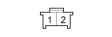
Female terminals
|
Connector images for female terminals.
|
|
|
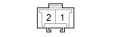
Male terminals
|
Connector images for male terminals.
|
|
|
Terminal side
|
Shows the terminal location viewed from the terminal side.
|
|
|
Wire side
|
Shows the terminal location viewed from the wire side.
|


Pingback: DTC 1301 GPS Antenna Error | Honda EPC Parts Cataloge
Pingback: DTC 1304 Gyro Error 1 | Honda EPC Parts Cataloge
Pingback: DTC 1306 Vehicle Speed Pulse | Honda EPC Parts Cataloge
Pingback: Honda DTC 2608 R-Camera Diag | Honda EPC Parts Cataloge
Pingback: DTC 2623 Remote Tuner Diag | Honda EPC Parts Cataloge
Pingback: Honda DTC 2630 CAN Diag | Honda EPC Parts Cataloge
Pingback: DTC 2624 Center Display Diag | Honda EPC Parts Cataloge
Pingback: Honda DTC 2703 Aircon Diag | Honda EPC Parts Cataloge
Pingback: Honda DTC 2706 Gyro Diag | Honda EPC Parts Cataloge
Pingback: Honda DTC 2707 Mic Diag | Honda EPC Parts Cataloge